Transcription
Document Metadata
Category: Customer Account Management / Call Transcription
Audience: Administrators, Engineers, Support, Analytics & Compliance Teams
Difficulty: Beginner to Intermediate
Time Required: Approximately 15–30 minutes
Prerequisites:
- Active ConnexCS account with Transcription enabled — this is a paid feature; check Pricing before setup.
- Call recording active for the customer (only recorded calls can be transcribed).
- Basic understanding of keyword/phrase matching and boolean logic (AND, OR, NOT).
Next Steps: After enabling transcription for the customer, create a customer Query Profile, then configure Transcription Alerts on the customer's account.
Need Help?: If the Enable Transcription option isn't visible in your account, or the customer needs transcription in a language other than English, contact ConnexCS support.
Meta Description: Enable and use call transcription for a specific customer account in ConnexCS to review conversations, detect key phrases, monitor compliance and trigger alerts.
Management Customer [Customer Name] Transcription
Overview
Transcription converts a customer's recorded calls into searchable text.
The Transcription tab inside a customer account shows only that customer's transcribed calls, so you can review what was said on their calls, search for specific words or phrases, and act on what you find, without sifting through calls from other customers.
Calls are transcribed in English by default; other languages are available on request.
Transcription is billed per second of speech, and you can resell it to the customer as a package at your own retail price.
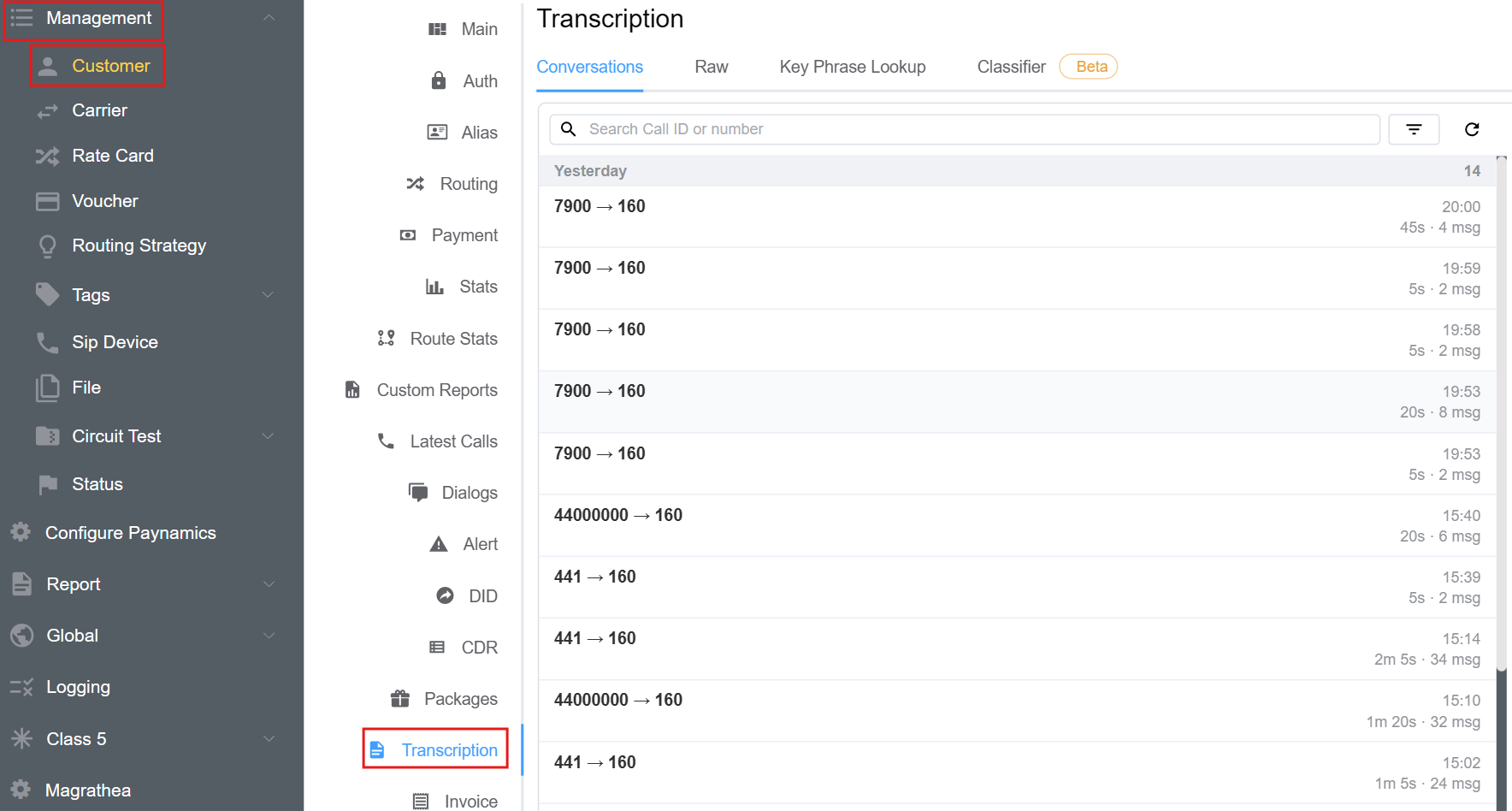
Recorded calls only
Only recorded calls are transcribed. If a call wasn't recorded, or fell outside the customer's sampling percentage, it won't appear in this tab.
Key Features
- Conversation view: Each transcribed call is shown as a two-sided conversation between the caller (Leg 0) and the callee (Leg 1), grouped by day with call time, duration and message count.
- Raw transcript segments: Review every utterance individually with its Call ID, date, text and leg.
- Key Phrase Lookup: Full-text search across the customer's transcripts with
AND,OR,NOTand exact-phrase matching, ranked by relevance score. - Lemmatization: Searches match different forms of the same word (for example, run also finds runs, running and ran).
- Classifier: Automatically categorises the customer's conversations to surface patterns.
- Per-customer sampling: Transcribe 1%, 5%, 25%, 50% or all of the customer's recorded calls.
- Transcription duration limit: Cap how many seconds of each call are transcribed.
- Customer Query Profiles: Save keyword and phrase rules for this customer that can trigger an alert or hang up the call.
- Transcription Alerts: Notify by e-mail, SMS or call, and optionally apply a penalty, when a saved phrase is detected.
- No charge for silence: Silent periods are removed before billing.
Benefits
- Fraud monitoring: Detect suspicious phrases, high-risk keywords or social-engineering attempts on the customer's calls, and respond automatically.
- Compliance review: Check the customer's traffic for regulated or prohibited wording to support audits and internal policy.
- Faster dispute resolution: Find a disputed call by Call ID or number and read exactly what was said.
- Customer experience and QA: Spot recurring complaints, service issues or poor call handling in the customer's conversations.
- Cost control: Sampling, duration limits and silence removal keep transcription costs predictable for each customer.
- Additional revenue: Resell transcription to the customer as a package at your own retail price.
Pricing
Transcription is a paid feature. Check Pricing before enabling it.
Warning
If you can't find the Enable Transcription option, contact ConnexCS support to have it enabled.
No fee for silence
Silence is removed before billing. If a call lasts 50 seconds and no audio is exchanged for 20 seconds, you're billed for 30 seconds of transcription.
How to Use the Transcription Feature
How to Enable the Transcription Feature
Enabling transcription for a customer takes two steps: switch the feature on for your ConnexCS account, then turn it on for the customer's route.
Step 1: Enable Transcription on Your Account
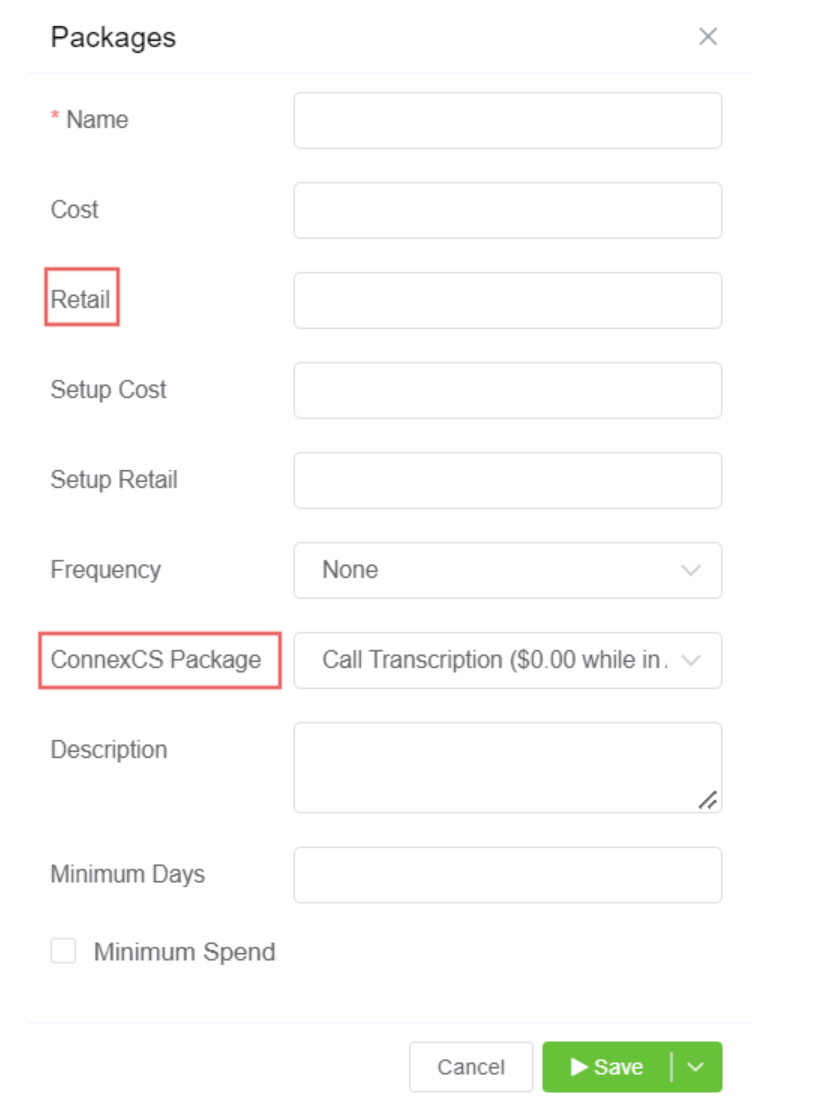
- Navigate to Setup Config Packages and click
 .
. - Choose your Transcription Package from ConnexCS Package.
- Enter the Retail Cost and click
 .
. - Assign the package to the customer from their account.
Step 2: Enable Transcription for the Customer
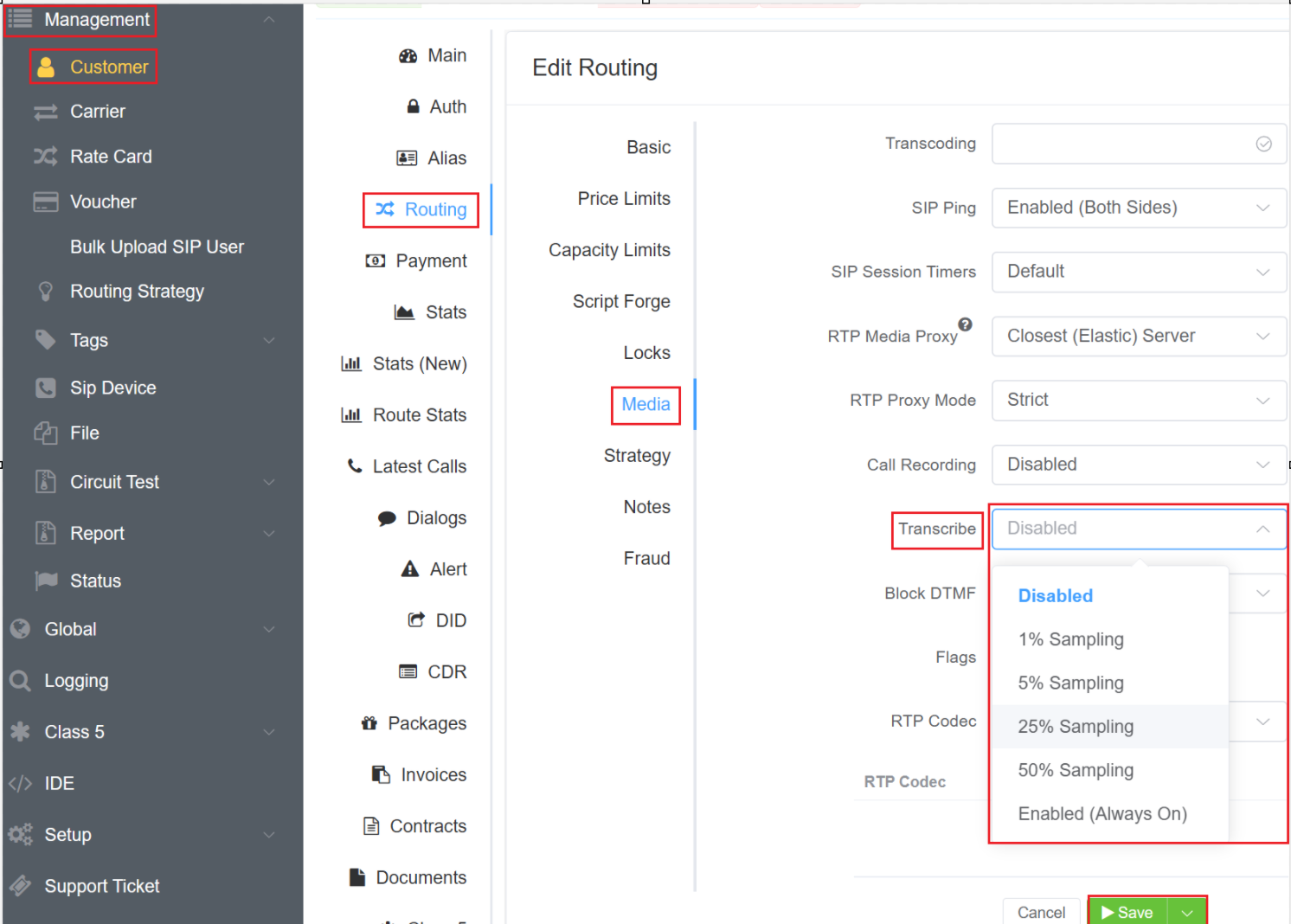
- Navigate to Management Customer [Customer Name] Routing Ingress Routing Media Transcribe.
-
From the drop-down, select one of:
- Disabled
- 1% Sampling
- 5% Sampling
- 25% Sampling
- 50% Sampling
- Enabled (Always On)
Sampling
% Sampling is the proportion of the customer's eligible calls that will be transcribed. Choose Enabled (Always On) to transcribe every recorded call.
-
Transcription Duration (optional): Enter the maximum number of seconds to transcribe per call. Transcription stops at this limit, even mid-sentence.
- Click
Save.
How to Use Transcription in a Customer Account
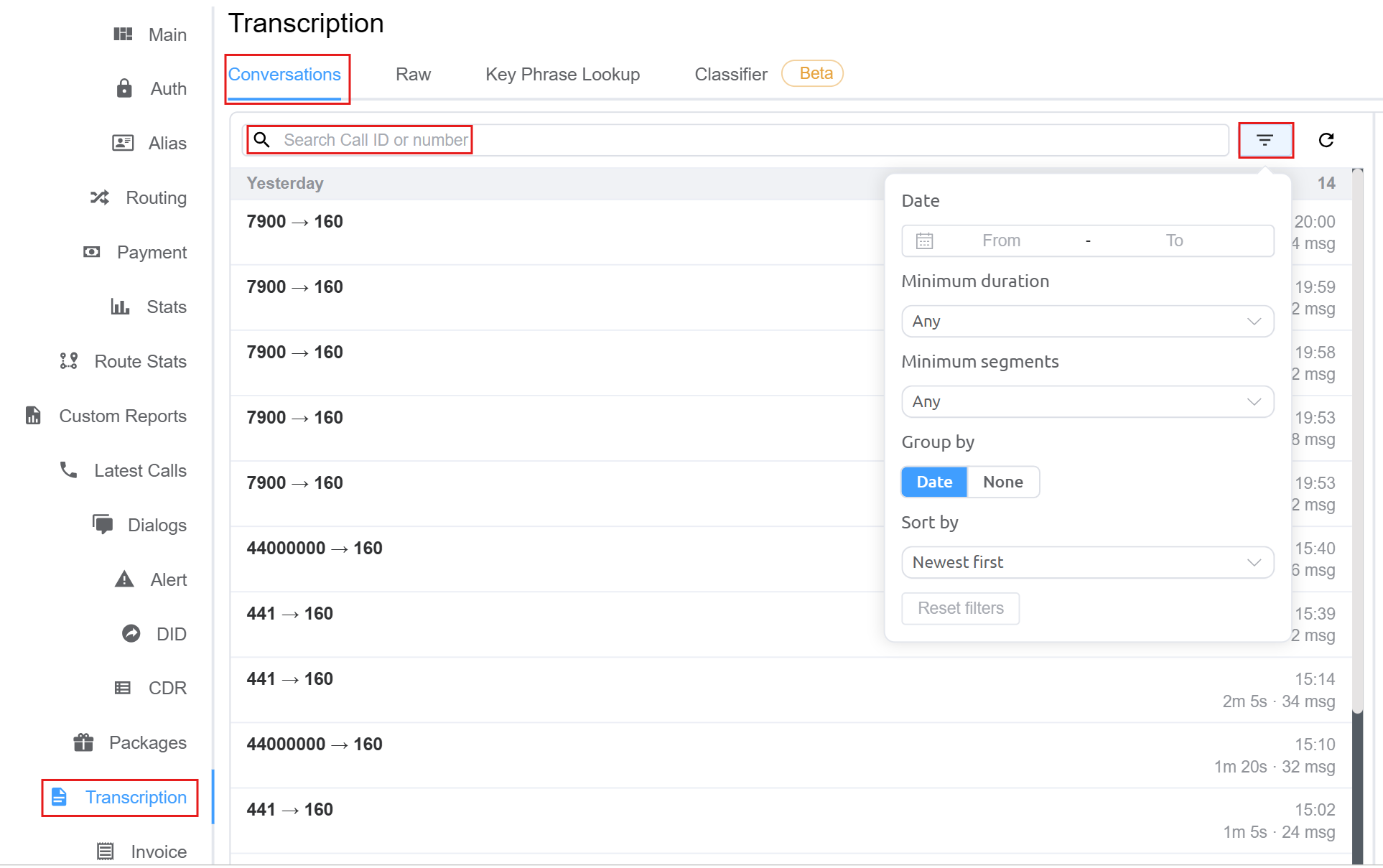
Navigate to Management Customer [Customer Name] Transcription. The tab has four sections: Conversations, Raw, Key Phrase Lookup and Classifier Beta.
Conversations
Conversations is the default view when you open the Transcription tab.
It lists every transcribed call for the customer as a conversation, so you can see at a glance who called whom, when, for how long, and how much was said.
Understanding the Conversation List
By default, calls are grouped by date with the newest first. Each part of the list shows:
| Element | Description | Example |
|---|---|---|
| Date header | The day the calls took place (for example, Today or Yesterday). The number on the right is the total count of transcribed calls in that group. | Yesterday 14 |
| Caller Dialed number | The calling number (CLI/ANI) on the left and the destination number on the right. | 7900 → 160 |
| Time | The time the call started. | 20:00 |
| Duration | How long the call lasted. | 2m 5s |
| Messages (msg) | The number of transcribed segments (speech turns) in the call. A higher count usually means a longer, more active conversation. | 34 msg |
Click any row to open the full conversation. Each message is shown in the order it was spoken and labelled by speaker:
- Leg 0: The caller (A-leg).
- Leg 1: The callee (B-leg).
Search
Use the Search Call ID or number box at the top of the list to find specific calls. You can enter:
- Call ID: Shows the single call with that ID. Useful when you've copied a Call ID from CDR or Logging.
- Calling number: Shows all transcribed calls made from that number, for example
441. - Dialed number: Shows all transcribed calls made to that number, for example
160.
The list updates to show only the matching calls. Clear the search box to see all calls again.
Tip
Search works on the Call ID and numbers only. To search for words or phrases spoken during a call, use Key Phrase Lookup.
Filter
Click the Filter icon (to the right of the search box) to open the filter panel. Filters apply together, so you can combine them to narrow the list.
| Filter | Description |
|---|---|
| Date | Choose a From and To date with the calendar to show only calls within that range. Leave it blank to include all dates. |
| Minimum duration | Show only calls that lasted at least the selected length. The default, Any, includes calls of every duration. Use it to hide very short calls such as quick hang-ups. |
| Minimum segments | Show only calls with at least the selected number of transcribed segments (messages). The default, Any, includes all calls. Use it to focus on calls with substantial conversation. |
| Group by | Date (default) groups calls under day headers with a count for each day. None shows a single continuous list with no date grouping. |
| Sort by | Sets the order of the list. The default is Newest first, which shows the most recent calls at the top. |
| Reset filters | Clears all filters and returns the list to its defaults (all dates, Any duration, Any segments, grouped by Date, Newest first). |
Finding a long call from last week
- Click Filter.
- Under Date, select last week's start and end dates.
- Set Minimum duration to a longer value to exclude short calls.
- Set Minimum segments to a higher value to keep only calls with plenty of speech.
- Open the matching conversation from the list.
Refresh
Click Refresh (to the right of the filter icon) to reload the list and show calls transcribed since you opened the page. Your current search and filters stay in place.
Confirm transcription is working
After enabling transcription for the customer, place a test call, then click Refresh. The call should appear under Today shortly after it ends.
Raw
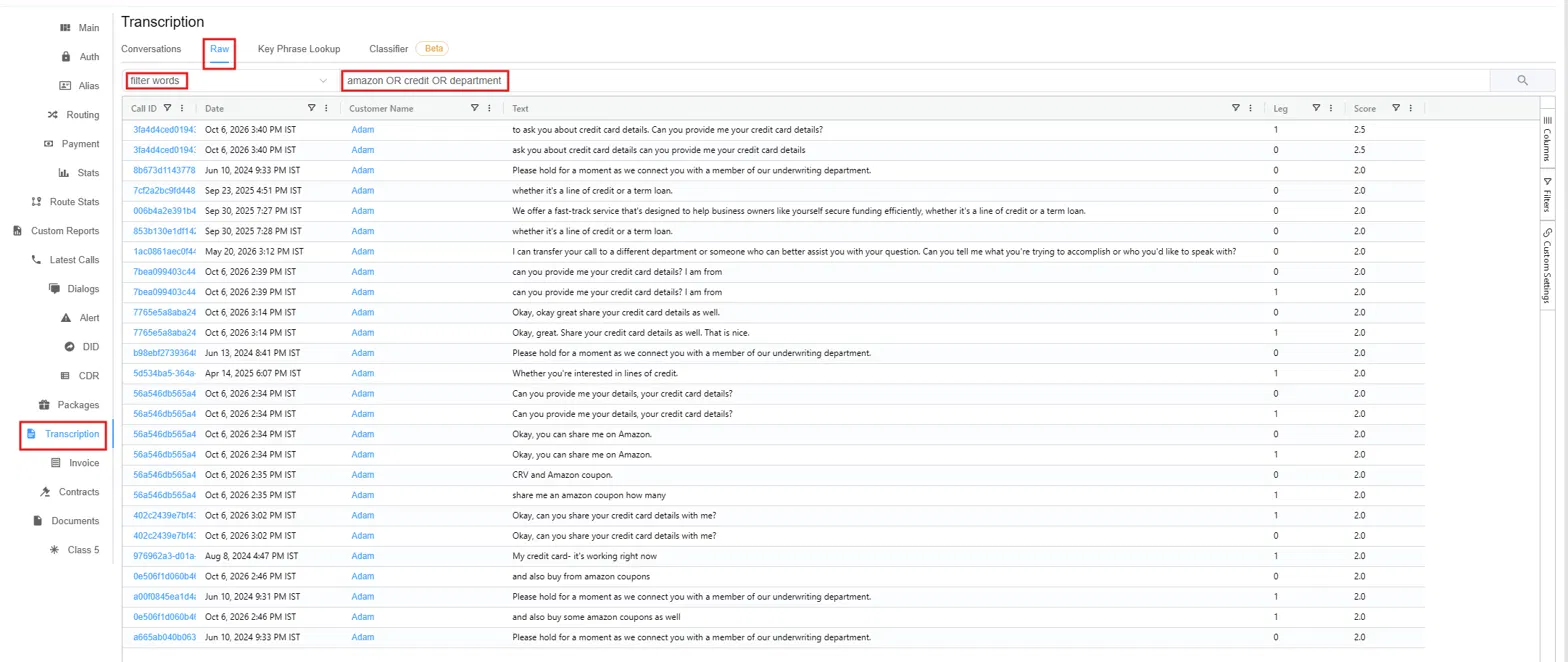
Raw shows the customer's transcripts as individual segments (one spoken sentence or phrase per row) instead of whole conversations. Use it to search transcripts for specific words or phrases, apply your saved Query Profiles, and review the exact wording that matched.
Search Bar
The search bar at the top of the Raw tab has two fields and a search button.
1. Filter words (saved Query Profile drop-down)
The filter words drop-down lists the Transcription Query Profiles available for this customer. Each entry shows:
- Left: The profile Name (for example, Compliance, Profanity Filter, Hang up on 5).
- Right: The Query saved in that profile (for example,
I am calling from th...,five|5).
When you select a profile, its query is automatically copied into the query field next to it, so you don't have to retype it. Click in the drop-down to clear the selection.
Sample profiles in the drop-down
| Profile Name | Saved Query | What it finds |
|---|---|---|
| Compliance | I am calling from the... |
A specific scripted phrase. |
| Profanity Filter | Arse\|Bloody\|Bugger\|... |
Any one of a list of offensive words. |
| Hang up on 5 | five\|5 |
Either "five" or "5". |
| Connected | connected |
The word "connected". |
| amazon | leave a message OR a... |
Either of two phrases. |
The pipe symbol | works as OR, so five|5 matches either value.
2. Query field
The query field holds the search that will be run. It's filled automatically when you pick a profile from filter words, but you can also:
- Type a new query without selecting a profile.
- Edit the query that a profile filled in, for example to add another keyword, without changing the saved profile.
The field supports the same operators as Key Phrase Lookup: AND, OR (or |), - for NOT, and "..." for an exact phrase. For example, amazon OR credit OR department returns every segment that contains any of those three words.
3. Search button
Click (at the right end of the bar) to run the query. The results grid updates to show the matching segments.
Results Grid
Each row in the grid is one transcribed segment that matched your query.
| Column | Description |
|---|---|
| Call ID | The unique ID of the call the segment belongs to. Click it to open that call. The same Call ID can appear on several rows when more than one segment of the call matched. |
| Date | Date and time the segment was spoken, shown in your time zone (for example, Oct 6, 2026 3:40 PM IST). |
| Customer Name | The customer the call belongs to. Click it to open the customer account. |
| Text | The transcribed sentence that matched your query. |
| Leg | Who was speaking: 0 is the caller (A-leg), 1 is the callee (B-leg). |
| Score | A relevance rating for how closely the segment matches the query. Higher scores appear first; for example, a segment containing several of your keywords (such as both "credit" and "card details") scores higher than one containing a single keyword. |
Each column header has two controls:
- Column filter: Filter the grid by a value in that column, for example show only
Leg=1, or only rows from a certain date. - Column menu: Column options such as sorting, pinning or resizing the column.
Side Panel: Columns, Filters and Custom Settings
The vertical tabs on the right edge of the grid open a side panel for controlling the grid layout.
Columns
Click Columns to choose which columns are shown.
- Tick or untick a column to show or hide it, for example hide Customer Name since every row belongs to the same customer.
- Drag columns in the list to change their order in the grid.
Filters
Click Filters to see and manage all column filters in one place instead of opening them from each column header.
- Expand a column (such as Date, Leg or Score) to set its filter.
- Combine filters across columns, for example Leg =
0and Score above2.0to see only the caller's strongest matches. - Clear a filter here to remove it from the grid.
Note
Column filters narrow the results already returned by your query. To change which segments are returned, change the query and click again.
Custom Settings
Click Custom Settings to save the grid layout you've set up, including visible columns, column order, sorting and filters, so you can reuse it the next time you open the Raw tab instead of setting it up again.
Building a Query Profile from Raw
Test a new query in the Raw tab first. When the results look right, save the same query as a Query Profile so it appears in the filter words drop-down and can trigger an alert or hangup.
Key Phrase Lookup
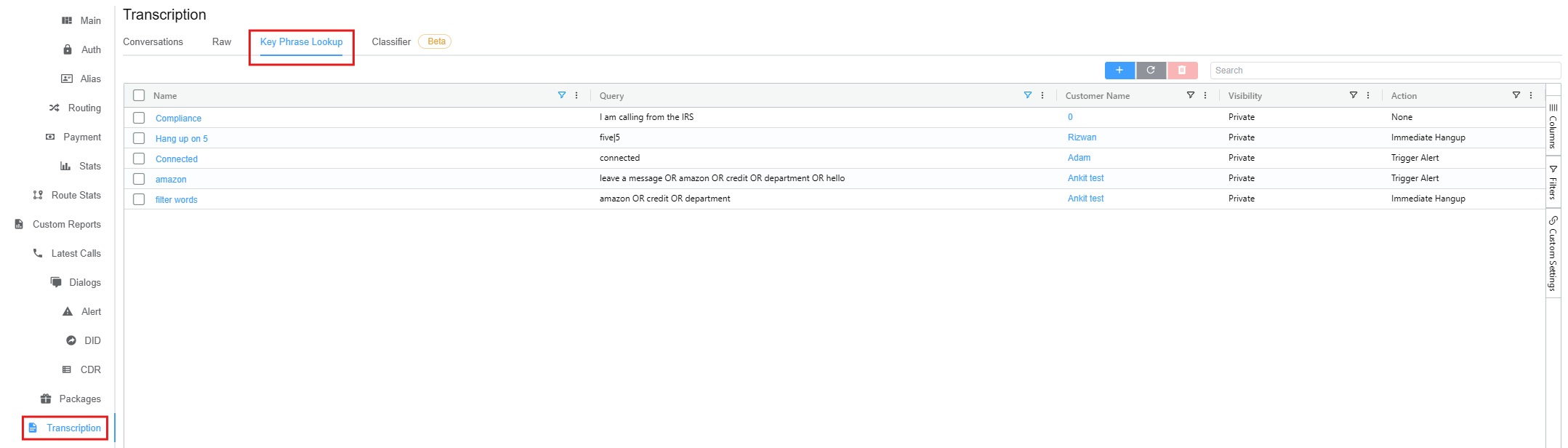
Key Phrase Lookup is where you create and manage Transcription Query Profiles.
A Query Profile is a saved keyword or phrase rule. When the rule matches something said on a call, the profile can raise an alert or hang up the call automatically.
The profiles you create here also appear in the filter words drop-down on the Raw tab, so you can run them as searches.
Toolbar
| Control | Description |
|---|---|
| Add (blue) | Create a new Query Profile. See Create a Customer Query Profile. |
| Refresh (grey) | Reload the list of profiles. |
| Delete (red) | Delete the selected profiles. Tick the checkbox next to one or more profiles first; the button stays inactive until a profile is selected. |
| Search | Type to find a profile by name, query or other visible values. |
Query Profile Columns
| Column | Description | Example |
|---|---|---|
| Checkbox | Select a profile to delete it. The checkbox in the header selects all profiles. | |
| Name | The name of the profile. Click it to open and edit the profile. | Hang up on 5 |
| Query | The keyword or phrase rule the profile checks for. | five\|5 |
| Customer Name | The customer the profile applies to. Click it to open that customer's account. | Adam |
| Visibility | Whether the customer can see and use the profile: Private or Public. | Private |
| Action | What happens when the query matches: Trigger Alert, Immediate Hangup, or None if no action was selected (the profile is then used only for searching). | Immediate Hangup |
Each column header has a column filter to filter the list by that column's value (for example, show only profiles with Action = Immediate Hangup) and a column menu for options such as sorting, pinning and resizing.
Side Panel: Columns, Filters and Custom Settings
The vertical tabs on the right edge of the list work the same way as on the Raw tab:
- Columns: Show, hide or reorder the columns, for example hide Customer Name to see more of each query.
- Filters: Manage all column filters in one place and combine them, for example Visibility = Public and Action = Trigger Alert.
- Custom Settings: Save the list layout (visible columns, order, sorting and filters) to reuse it later.
Create a Customer Query Profile
-
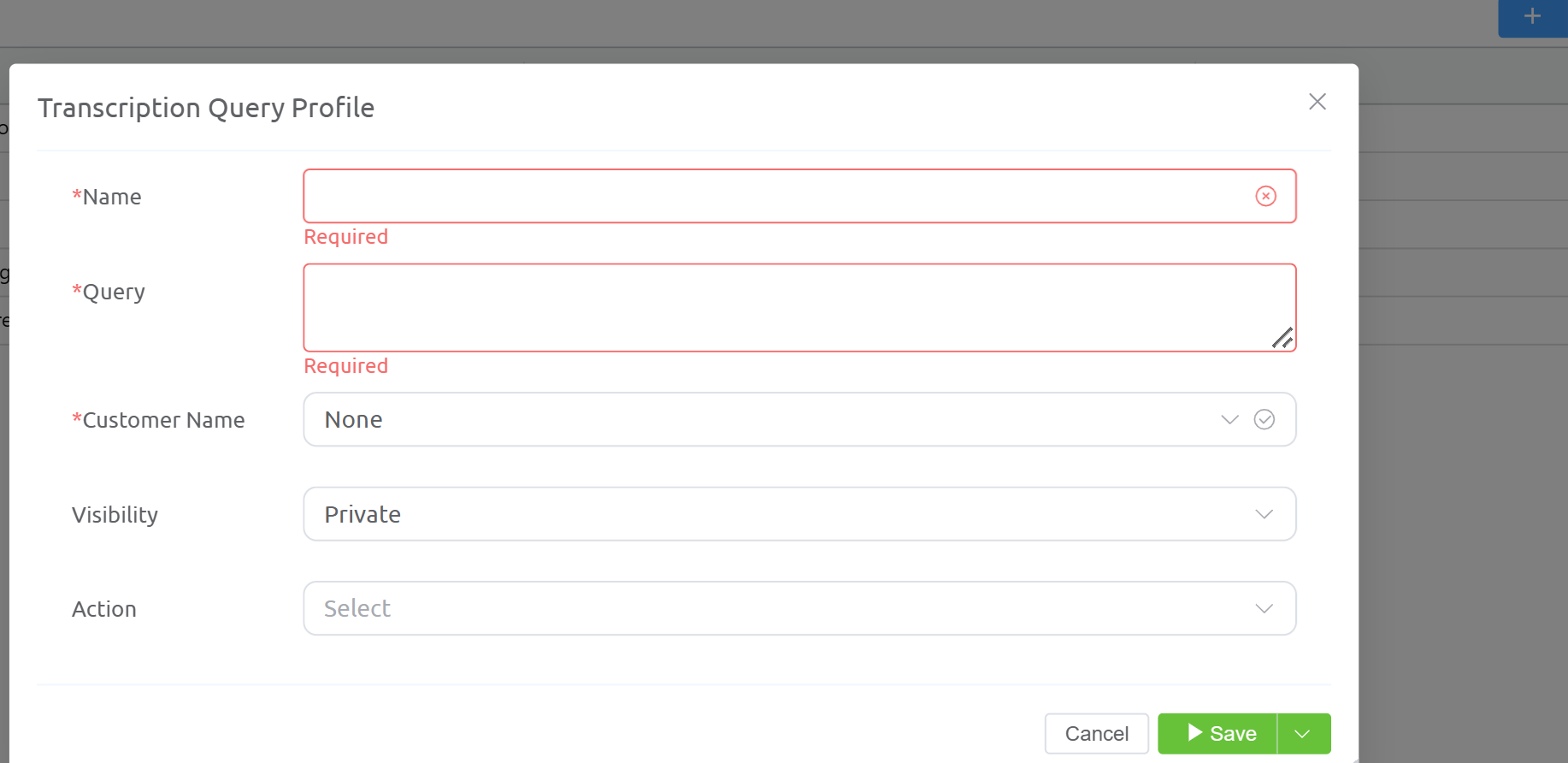
Click the blue button in the toolbar. The Transcription Query Profile form opens.
-
Complete the fields:
Field Required Description Name Yes A clear name for the profile, for example Profanity FilterorCustomer1 – Fraud Phrases. This is the name shown in the list and in the Raw tab's filter words drop-down.Query Yes The keyword or phrase rule to detect. See Query syntax below. Customer Name Yes The customer the profile applies to. Select the customer you're working on so the rule applies only to their calls. Leaving it as None makes the profile apply across all customers. Visibility No Who can see the profile (default Private):
• Private: Only you (the operator) can see and use it. The profile is hidden from the customer.
• Public: The customer can also see and use the profile from their portal.Action No What happens when the query matches during a call:
• Trigger Alert: Raises a Transcription Alert so you're notified by e-mail, SMS or call. You also need to set up the alert on the customer's account.
• Immediate Hangup: Ends the call as soon as the phrase is detected.
Leave it unselected if you only want to use the profile for searching.Immediate Hangup
Immediate Hangup cuts off live calls without warning whenever the query matches. Test the query on the Raw tab first to make sure it doesn't match ordinary conversation.
-
Click
Saveto create the profile, orCancelto close the form without saving. The arrow next to Save offers additional save options.
The new profile appears in the Key Phrase Lookup list and in the filter words drop-down on the Raw tab.
Customer vs Global profiles
A profile with a Customer Name selected applies only to that customer. A profile with None applies across all customers and is also listed under Global Transcription.
Query Syntax
| Operator | Explanation | Example |
|---|---|---|
AND / and / & |
Matches when all keywords are present. | refund AND cancellation |
OR / or / \| |
Matches when at least one keyword is present. | amazon OR credit OR department, five\|5 |
- (NOT) |
Excludes the prefixed keyword. | refund -approved |
"..." |
Matches the exact phrase rather than separate words. | "I am calling from the IRS" |
* |
Matches all transcripts (search only). | * |
Lemmatization
Different forms of a word are grouped together, so build also matches builds, building and built.
Example profiles
| Name | Query | Visibility | Action | Purpose |
|---|---|---|---|---|
| Compliance | I am calling from the IRS |
Private | None | Find calls using a known scam script. |
| Hang up on 5 | five\|5 |
Private | Immediate Hangup | End the call if "five" or "5" is spoken. |
| Connected | connected |
Private | Trigger Alert | Get notified when "connected" is said. |
| amazon | leave a message OR amazon OR credit OR department OR hello |
Private | Trigger Alert | Alert on any of several keywords. |
Classifier Beta
The Classifier uses an AI model to read each transcribed conversation and answer a set of questions about it, such as "Is this likely a scam?" or "What category of call is this?".
You can then decide what should happen based on those answers, for example hanging up calls that are very likely to be scams.
Beta Version
The Classifier is in Beta. Its behaviour and options may change. Review the results before relying on them for compliance, billing or call-blocking decisions.
Transcription must be enabled first
Only calls that are already being transcribed can be classified. Enable transcription for the customer under Routing (Transcribe) before setting up a classifier.
How Call Classification Works
Expand How call classification works? at the top of the tab for a short explanation. Classification is built from four parts, each with its own sub-tab:
| Part | What it does |
|---|---|
| Classifiers | Decide what the model is asked about each call. The model only describes the call; it never decides what happens to it. |
| Policies | Decide what is done with the answers, using thresholds you control. For example: if Likely scam is at least 95%, hang up. |
| Assignments | Choose which customers' calls each classifier runs on. |
| Results | Show how each call was classified and which policies would have fired. |
In short: a classifier asks the questions, a policy acts on the answers, and an assignment decides whose calls are checked.
Recommended setup order
To use the Classifier tab efficiently, set it up in this order:
- Create a classifier on the Classifiers sub-tab (or duplicate the ConnexCS classifier to customise it).
- Attach the classifier to a policy on the Policies sub-tab by selecting it in the policy's Classifier field and setting the conditions and action.
- Assign the classifier to the customer on the Assignments sub-tab.
Once all three are in place, the customer's calls are classified and the policy is evaluated. Check Results to confirm everything is working.
Shadow and Active Modes
Every rule runs in one of two modes:
- Shadow (shown as Shadow: recorded only, no action taken): Calls are evaluated and the outcome is recorded in Results, but no action is carried out. You can see what would have happened without affecting any calls.
- Active: Calls are evaluated and the policy's action is carried out.
New rules always start in Shadow mode. An action is carried out only when both the assignment and the policy are set to Active.
Test in Shadow first
Leave a new classifier in Shadow mode for a while and check Results to confirm it's classifying calls correctly before switching it to Active. This avoids hanging up or flagging genuine calls by mistake.
Assignments
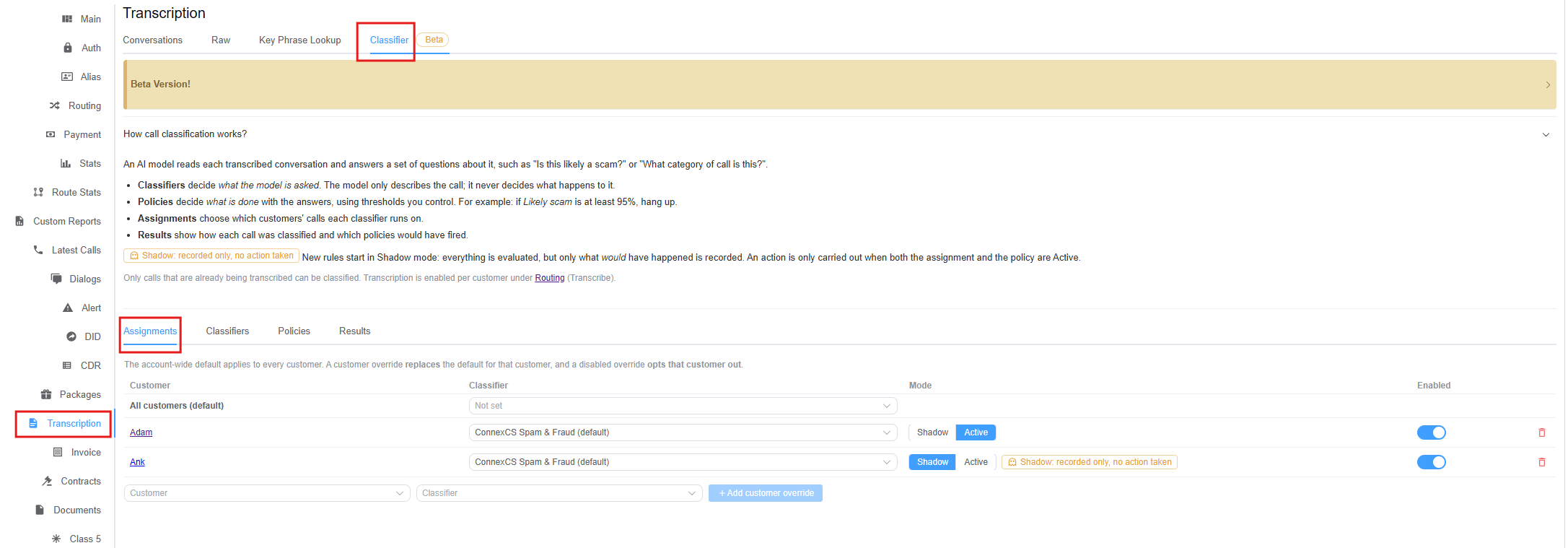
The Assignments sub-tab controls which classifier runs on which customer's calls.
Default and overrides
- The account-wide default applies to every customer.
- A customer override replaces the default for that customer.
- A disabled override opts that customer out of classification.
The assignments list covers your whole account, so it shows every customer that has an override, not only the customer you opened.
Assignment columns
| Column | Description |
|---|---|
| Customer | The customer the row applies to. The first row, All customers (default), is the account-wide default. Other rows are customer overrides; click a customer's name to open their account. |
| Classifier | The classifier that runs on this customer's calls, chosen from the drop-down, for example ConnexCS Spam & Fraud (default). Not set on the default row means no classifier runs for customers without their own override. |
| Mode | Click Shadow or Active to switch the mode for this customer (the selected mode is highlighted in blue). While Shadow is selected, the row shows the Shadow: recorded only, no action taken label. |
| Enabled | Toggle the assignment on or off. Turning it off opts the customer out of classification without deleting the override. |
| Delete | Remove the override. The customer then falls back to the account-wide default. |
Reading the assignments
| Customer | Classifier | Mode | Enabled | Result |
|---|---|---|---|---|
| All customers (default) | Not set | – | – | Customers without an override aren't classified. |
| Adam | ConnexCS Spam & Fraud (default) | Active | On | Adam's calls are classified and active policies take action. |
| Ank | ConnexCS Spam & Fraud (default) | Shadow | On | Ank's calls are classified and recorded in Results, but no action is taken. |
Set the account-wide default
- On the All customers (default) row, open the Classifier drop-down.
- Select the classifier that should run for every customer without an override.
Add a customer override
- In the row at the bottom of the list, select the Customer from the drop-down.
- Select the Classifier to run for that customer.
- Click + Add customer override. The button becomes available once both a customer and a classifier are selected.
- The new override is added in Shadow mode. Check Results, then click Active when you're ready for policies to take action on this customer's calls.
Opt a customer out
Add an override for the customer and switch Enabled off. The customer's calls won't be classified, even if an account-wide default is set.
Classifiers
The Classifiers sub-tab lists the classifiers available on your account. A classifier is a set of questions the AI model answers about each call, plus settings for when the model runs. Classifiers only describe calls; what happens next is decided by Policies.
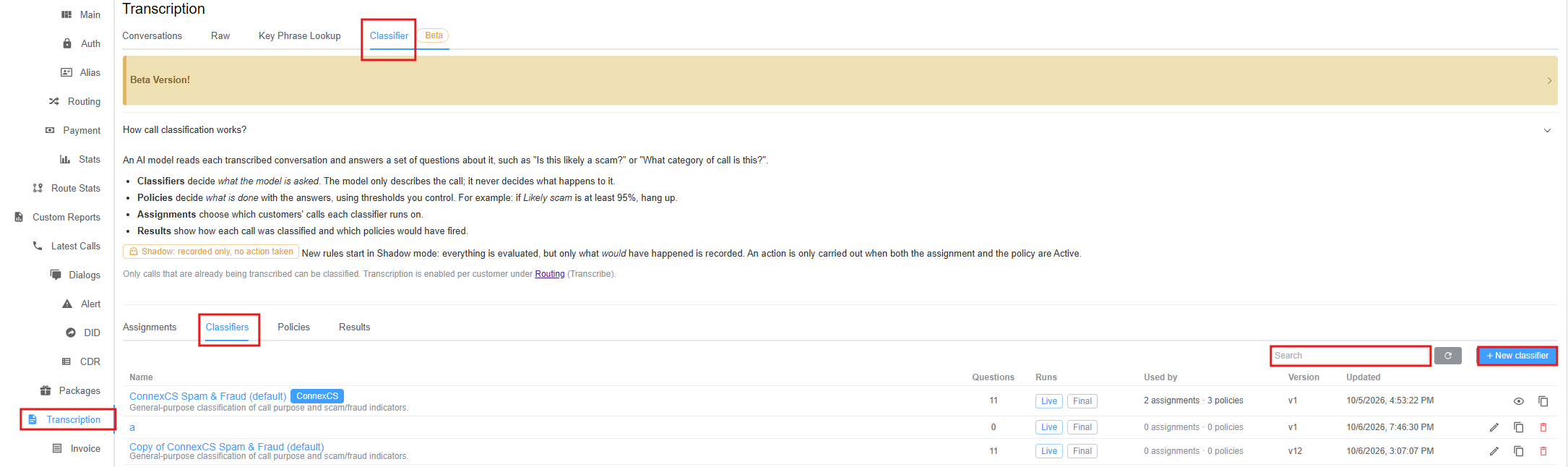
Toolbar
| Control | Description |
|---|---|
| Search | Type part of a classifier's name or description to filter the list. Clear the box to see all classifiers again. |
| Refresh | Reload the list, for example after another user has added or changed a classifier. |
| + New classifier | Create your own classifier. See Create a New Classifier. |
Classifier columns
| Column | Description | Example |
|---|---|---|
| Name | The classifier's name, with its description underneath. Click the name to open it. A blue ConnexCS badge marks a classifier supplied by ConnexCS. | ConnexCS Spam & Fraud (default) |
| Questions | How many questions the classifier asks the model about each call. A classifier with 0 questions doesn't produce any answers yet. |
11 |
| Runs | When the classifier runs: • Live: During the call (Classify during the call is on). Needed for any live action, such as hanging up. • Final: After the call ends (Classify after the call ends is on). Produces the final report. |
Live Final |
| Used by | How many assignments and policies use this classifier. | 2 assignments · 3 policies |
| Version | The classifier's version number. It increases each time the classifier is changed and saved. | v12 |
| Updated | Date and time the classifier was last changed. | 10/6/2026, 3:07:07 PM |
Row actions
| Icon | Action | Available on |
|---|---|---|
| View | Open the classifier read-only. | ConnexCS classifiers |
| Edit | Open the classifier to change it. | Your own classifiers |
| Duplicate | Create an editable copy, named Copy of [classifier name]. | All classifiers |
| Delete | Delete the classifier. | Your own classifiers |
Customising the ConnexCS classifier
ConnexCS classifiers are read-only. To adjust one (for example, add context about your traffic or turn off a question), click Duplicate and edit the copy. Check Used by before deleting a classifier, since assignments and policies that use it will be affected.
Viewing a Classifier
Click a classifier's name (or for a ConnexCS classifier) to open it. The header shows the name, the ConnexCS badge if it's supplied by ConnexCS, and the version (for example, v1).
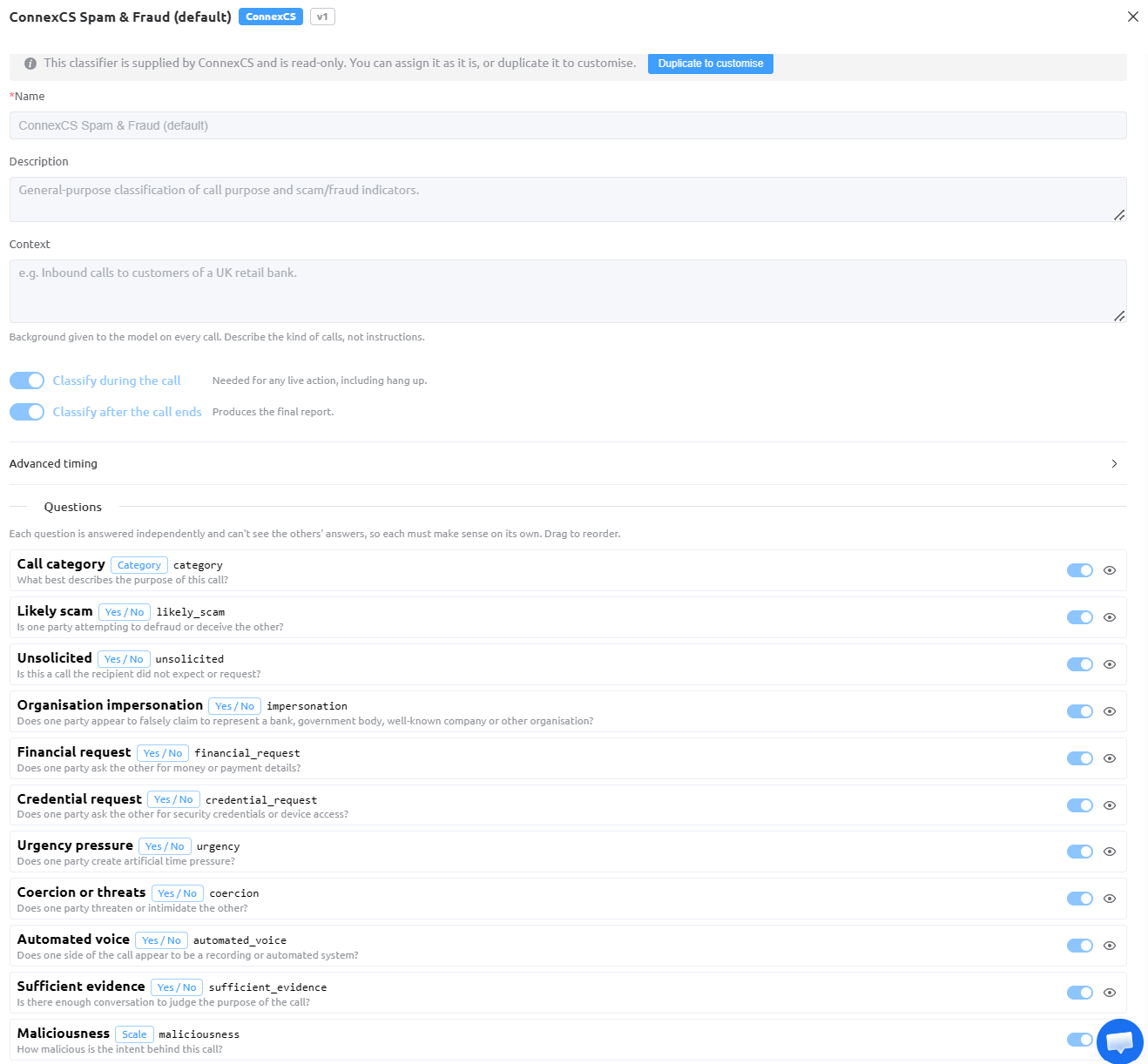
For a ConnexCS classifier, a banner explains that it's read-only: you can assign it as it is, or click Duplicate to customise to create an editable copy.
The classifier contains the same settings as the New classifier form (Name, Description, Context, the Classify during/after the call switches and Advanced timing), followed by its Questions.
Questions
Each question is one thing the AI model is asked about the call.
- Each question is answered independently and can't see the other questions' answers, so every question must make sense on its own.
- Drag questions to reorder them (in your own classifiers).
Each question shows:
| Element | Description | Example |
|---|---|---|
| Label | The question's display name. | Likely scam |
| Answer type | The kind of answer the model gives: • Yes / No: A yes or no judgement. • Category: Picks one category from a list. • Scale: A rating along a scale. |
Yes / No |
| Key | The question's internal name, used to refer to its answer, for example in a policy rule. | likely_scam |
| Description | The question the model is actually asked. | Is one party attempting to defraud or deceive the other? |
| Toggle | Turn the question on or off without deleting it. | |
| View | Open the question's details. |
Questions in ConnexCS Spam & Fraud (default)
| Label | Type | Key | What the model is asked |
|---|---|---|---|
| Call category | Category | category |
What best describes the purpose of this call? |
| Likely scam | Yes / No | likely_scam |
Is one party attempting to defraud or deceive the other? |
| Unsolicited | Yes / No | unsolicited |
Is this a call the recipient didn't expect or request? |
| Organisation impersonation | Yes / No | impersonation |
Does one party falsely claim to represent a bank, government body, well-known company or other organisation? |
| Financial request | Yes / No | financial_request |
Does one party ask the other for money or payment details? |
| Credential request | Yes / No | credential_request |
Does one party ask the other for security credentials or device access? |
| Urgency pressure | Yes / No | urgency |
Does one party create artificial time pressure? |
| Coercion or threats | Yes / No | coercion |
Does one party threaten or intimidate the other? |
| Automated voice | Yes / No | automated_voice |
Does one side of the call appear to be a recording or automated system? |
| Sufficient evidence | Yes / No | sufficient_evidence |
Is there enough conversation to judge the purpose of the call? |
| Maliciousness | Scale | maliciousness |
How malicious is the intent behind this call? |
Create a New Classifier
-
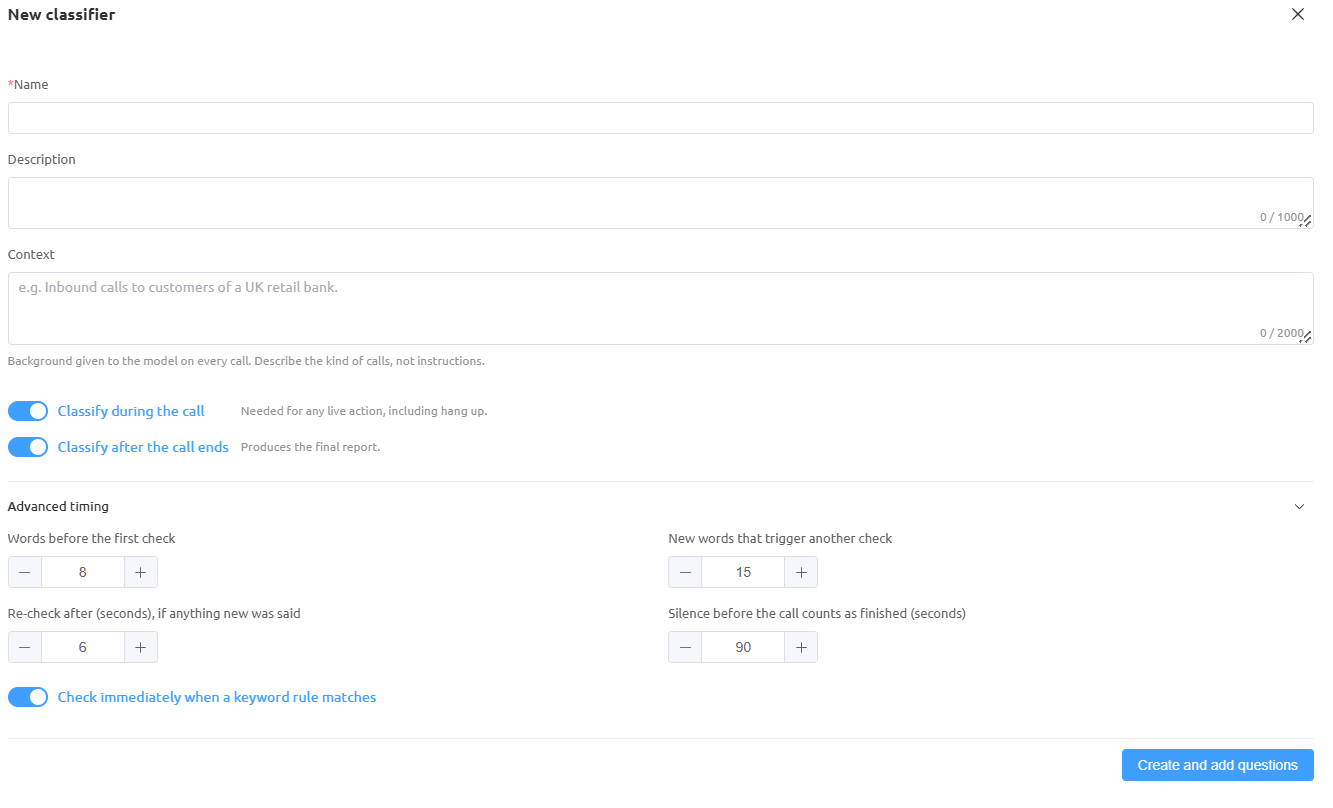
On the Classifiers sub-tab, click + New classifier. The New classifier form opens.
-
Complete the general fields:
Field Required Description Name Yes A clear name for the classifier, for example Bank Fraud – Inbound. It's shown in the classifier list and the Classifier drop-down on the Assignments sub-tab.Description No A short summary of what the classifier is for (up to 1000 characters). Shown under the name in the list. Context No Background information given to the AI model on every call (up to 2000 characters). Describe the kind of calls, not instructions. For example: Inbound calls to customers of a UK retail bank. Good context helps the model judge what's normal for this traffic. Classify during the call – When on, the model checks the conversation while the call is still in progress. Required for any live action, including hang up. Shown as Live in the list. Classify after the call ends – When on, the model reviews the complete conversation once the call has finished and produces the final report. Shown as Final in the list. Note
Turn on Classify during the call if a policy should act on calls in progress (for example, hang up a likely scam). If you only need reporting, Classify after the call ends on its own is enough.
-
(Optional) Expand Advanced timing to control how often the model checks a live call. These settings apply to classifying during the call.
Field Default Description Words before the first check 8How many words must be transcribed before the model makes its first check. Prevents the model judging a call on too little speech. New words that trigger another check 15After each check, the model checks again once this many new words have been spoken. Lower values react faster; higher values make fewer checks. Re-check after (seconds), if anything new was said 6The model also re-checks after this many seconds, as long as something new has been said since the last check. This catches slow conversations that don't reach the word count quickly. Silence before the call counts as finished (seconds) 90How many seconds of silence before the call is treated as finished for classification. Check immediately when a keyword rule matches On When on, the model runs a check straight away whenever a keyword rule matches, without waiting for the word count or timer. Use − and + to change each value, or type a number.
-
Click Create and add questions. The classifier is created and opens so you can add its questions.
- Add the questions the model should answer. For each one, give it a label, an answer type (Yes / No, Category or Scale), a key and the question text. Write each question so it makes sense on its own, because questions can't see each other's answers.
- Assign the classifier to customers on the Assignments sub-tab. It starts in Shadow mode.
Policies
The Policies sub-tab decides what is done with a classifier's answers. A policy watches one or more answers (for example, Likely scam) and, when its conditions are met, carries out an action such as sending an alert, tagging the call or hanging up.
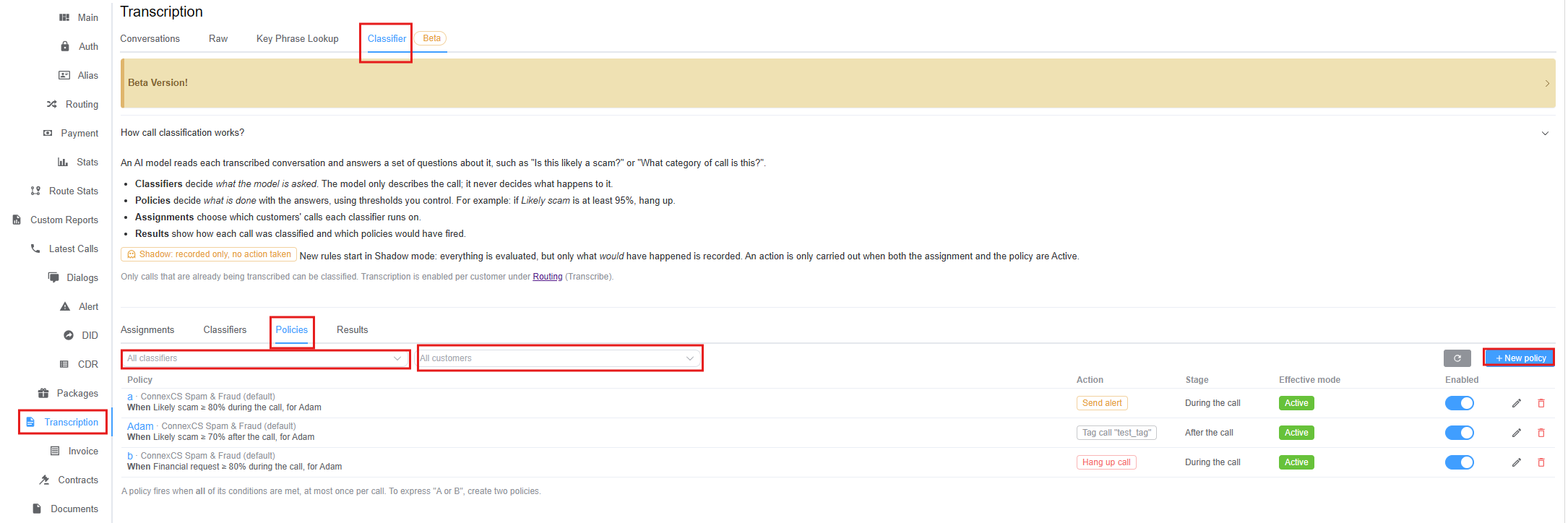
Filter drop-downs and toolbar
| Control | Description |
|---|---|
| All classifiers | Select a classifier to show only the policies that use it. Leave it as All classifiers to show every policy. |
| All customers | Select a customer to show only the policies that apply to that customer. Leave it as All customers to show policies for everyone. |
| Refresh | Reload the list of policies. |
| + New policy | Create a new policy. See Create a New Policy. |
You can use both drop-downs together, for example to see only the ConnexCS Spam & Fraud (default) policies that apply to Adam.
Policy columns
| Column | Description | Example |
|---|---|---|
| Policy | The policy name and the classifier it uses, followed by a plain-language summary of the rule. | a · ConnexCS Spam & Fraud (default)When Likely scam ≥ 80% during the call, for Adam |
| Action | What the policy does when its conditions are met: • Send alert: Sends a Transcription alert. • Tag call: Adds a tag to the call (the tag name is shown, for example "test_tag").• Hang up call: Ends the call. |
Hang up call |
| Stage | When the policy is checked: During the call or After the call. | During the call |
| Effective mode | Whether the action is really carried out. Active means both the policy and the customer's assignment are Active, so the action happens. Shadow means the outcome is only recorded in Results. | Active |
| Enabled | Turn the policy on or off without deleting it. | |
| Edit | Open the policy to change it. | |
| Delete | Delete the policy. |
Click on the respective policy to edit it
Click a policy in the list (or its icon) to open and edit it.
How policies fire
A policy fires when all of its conditions are met, and at most once per call. To express "A or B", create two separate policies.
Create a New Policy
-
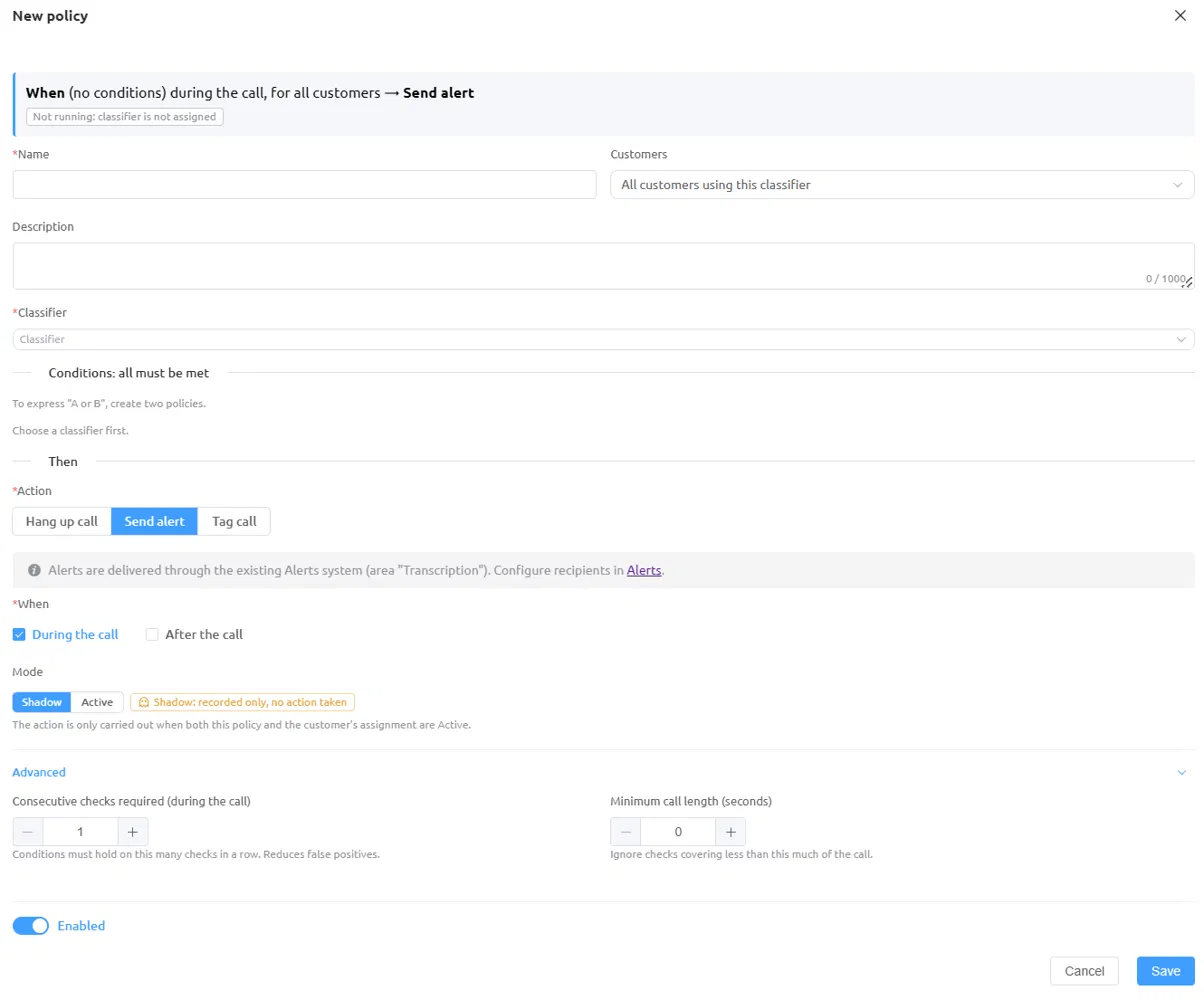
On the Policies sub-tab, click the blue + New policy button. The New policy form opens.
-
Check the summary at the top of the form. It updates as you fill in the form and describes the rule in plain language, for example When (no conditions) during the call, for all customers → Send alert. A status label underneath shows whether the policy can run; Not running: classifier is not assigned means the selected classifier isn't assigned to any customer yet on the Assignments sub-tab.
-
Complete the general fields:
Field Required Description Name Yes A clear name for the policy, for example Hang up likely scams – Adam.Customers No Which customers the policy applies to. The default, All customers using this classifier, applies it to every customer assigned the selected classifier. Select a specific customer to limit it to them. Description No Notes about the policy's purpose (up to 1000 characters). Classifier Yes The classifier whose answers the policy uses. You must choose a classifier before you can add conditions. -
Under Conditions: all must be met, add the conditions that trigger the policy. Each condition uses one of the selected classifier's questions and a threshold, for example Likely scam ≥ 80% or Financial request ≥ 80%. All conditions must be true for the policy to fire.
Tip
To trigger on "A or B", create two policies, one for each condition.
-
Under Then, set what happens:
Field Required Description Action Yes Choose one:
• Hang up call: Ends the call when the conditions are met. Only works During the call.
• Send alert: Sends an alert through the existing Alerts system, using the area Transcription. Configure who receives it under Management Customer [Customer Name] Alert (see Set Up Transcription Alerts).
• Tag call: Adds a tag to the call so you can find and report on these calls later.When Yes When the policy is checked. Tick one or both:
• During the call: Checked while the call is in progress. Needed for Hang up call and live alerts. The classifier must have Classify during the call turned on.
• After the call: Checked on the final report once the call has ended. The classifier must have Classify after the call ends turned on.Mode – • Shadow (default): The policy is evaluated and the outcome is recorded in Results, but no action is taken.
• Active: The action is carried out.
The action is only carried out when both this policy and the customer's assignment are Active. -
(Optional) Expand Advanced to fine-tune when the policy fires:
Field Default Description Consecutive checks required (during the call) 1How many checks in a row the conditions must hold for before the policy fires. Raising it (for example, to 2or3) reduces false positives from a single misleading moment in the call.Minimum call length (seconds) 0Ignore checks that cover less than this much of the call. Use it to stop the policy firing on the first few seconds of a call, before there's enough conversation to judge. -
Leave Enabled on to turn the policy on when it's saved, or switch it off to save it without running it.
- Click
Save, orCancelto close the form without saving.
Test hang-up policies in Shadow mode
A Hang up call policy in Active mode ends real calls. Leave it in Shadow mode first and check Results to confirm it only fires on the calls you expect before switching it to Active.
Results
The Results sub-tab shows how each classified call was scored, what category it was placed in, its risk level, and which rules and policies matched, including whether their actions were carried out or would have been (in Shadow mode).
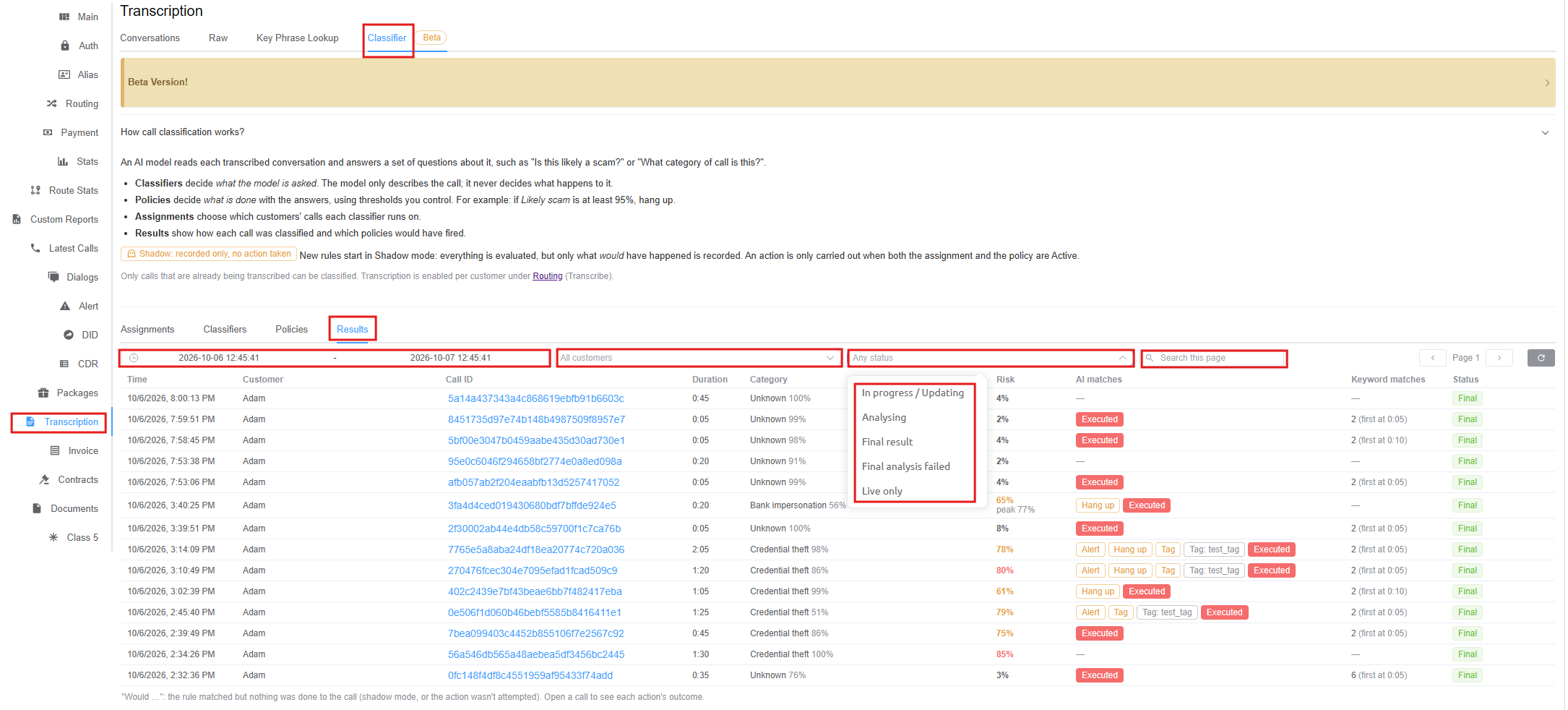
Filters and toolbar
| Control | Description |
|---|---|
| Date range | Choose the From and To date and time to show calls classified in that period. It defaults to the last 24 hours. |
| All customers | Select a customer to show only their calls, or leave it as All customers. |
| Any status | Show only calls with a particular classification status: • In progress / Updating: The call is still being classified, or its result is being updated. • Analysing: The model is producing the final analysis. • Final result: Classification is complete. • Final analysis failed: The final analysis couldn't be completed. • Live only: Calls that only have live (during-the-call) results, with no final report. |
| Search this page | Filter the rows on the current page, for example by Call ID, category or action. |
| Page | Move between pages of results. |
| Refresh | Reload the results. |
Result columns
| Column | Description | Example |
|---|---|---|
| Time | When the call took place. | 10/6/2026, 3:14:09 PM |
| Customer | The customer the call belongs to. | Adam |
| Call ID | The call's unique ID. Click it to open the Call classification view. | 7765e5a8aba24df... |
| Duration | Length of the call. | 2:05 |
| Category | The category the model gave the call (from the classifier's Call category question) and how strongly it chose that category. | Credential theft 98% |
| Risk | The Likely scam score for the call. Higher values are highlighted in orange or red. When the score went higher at some point during the call, the highest value is shown as peak. | 65% peak 77% |
| AI matches | The policy actions that matched the call. Each action is shown as a badge (Alert, Hang up, Tag, or Tag: [name]). An outlined badge means the policy matched but the action wasn't carried out ("Would ..."), for example because it was in Shadow mode. A red Executed badge means an action was actually carried out on the call. — means nothing matched. |
Alert Hang up Tag: test_tag Executed |
| Keyword matches | How many keyword rules matched the call, and when the first match happened. | 2 (first at 0:05) |
| Status | The classification status, for example Final once the final report is complete. | Final |
\"Would ...\" results
A "Would ..." result means the rule matched but nothing was done to the call, either because the policy or assignment was in Shadow mode, or because the action wasn't attempted. Open the call to see the outcome of each action.
Tip
Sort or filter by Risk and Category to find the calls most likely to be scams, then open them to review what was said.
Call Classification Details
Click a Call ID on the Results sub-tab to open the Call classification view for that call. It shows everything the classifier found, how the risk changed during the call, which rules fired, and the transcript.
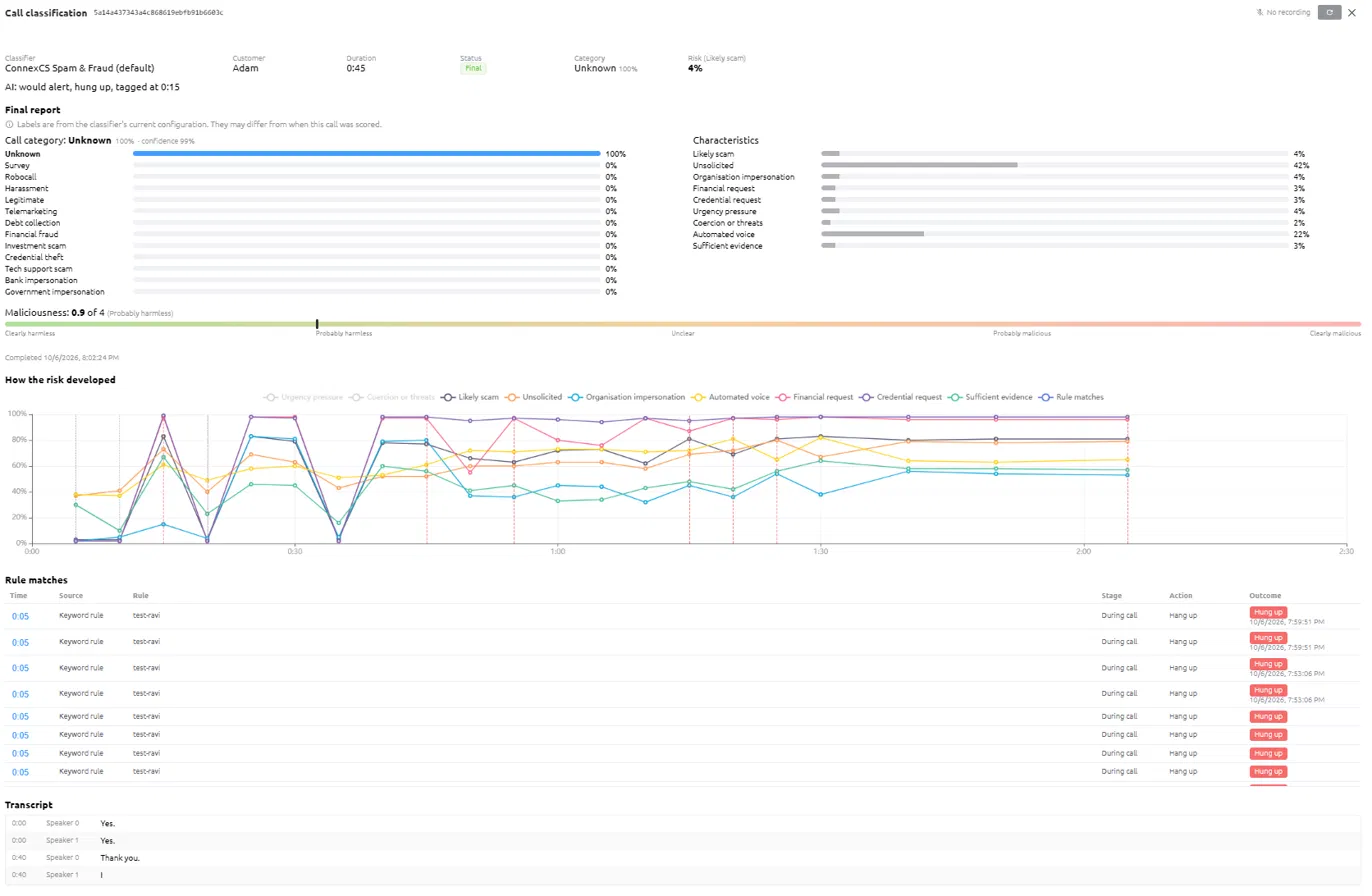
At the top right, the view shows whether a recording is available (for example, No recording), a Refresh button and to close the view.
Summary
| Field | Description | Example |
|---|---|---|
| Classifier | The classifier that analysed the call. | ConnexCS Spam & Fraud (default) |
| Customer | The customer the call belongs to. | Adam |
| Duration | Length of the call. | 0:45 |
| Status | Classification status. | Final |
| Category | The category the call was placed in, with its score. | Unknown 100% |
| Risk (Likely scam) | The final Likely scam score. | 4% |
| AI summary | A one-line summary of what the policies did and when, for example AI: would alert, hung up, tagged at 0:15. "Would" marks actions that matched but weren't carried out. |
Final report
The final report is the classifier's verdict on the complete call, produced after the call ends.
Note
Labels come from the classifier's current configuration. If the classifier has been changed since the call was scored, the labels may differ from those used at the time.
- Call category: A bar chart showing how likely the call is to belong to each category (for example, Unknown, Survey, Robocall, Harassment, Legitimate, Telemarketing, Debt collection, Financial fraud, Investment scam, Credential theft, Tech support scam, Bank impersonation, Government impersonation). The longest bar is the chosen category. The heading also shows the model's confidence in its choice, for example Unknown 100% · confidence 99%.
- Characteristics: A bar for each Yes / No question in the classifier, showing how likely the answer is "Yes" (0–100%). For example, Unsolicited 42% and Automated voice 22% mean the model saw some signs of an unexpected, partly automated call, while Likely scam 4% means it's very unlikely to be a scam.
- Maliciousness: The Scale question's score, shown as a number out of 4 and as a marker on a colour scale running from Clearly harmless (green) through Probably harmless, Unclear and Probably malicious to Clearly malicious (red). For example, 0.9 of 4 (Probably harmless).
- Completed: When the final report was produced.
How the risk developed
A line chart showing how the model's answers changed over the course of the call.
- The horizontal axis is time into the call (for example,
0:00to2:30). - The vertical axis is the score, from
0%to100%. - Each coloured line is one characteristic (for example, Likely scam, Unsolicited, Organisation impersonation, Automated voice, Financial request, Credential request, Sufficient evidence). Each point on a line is one check the model made during the call.
- Red dashed vertical lines (Rule matches in the legend) mark the moments a rule matched.
- Click an item in the legend to hide or show that line. Hidden items appear greyed out.
Use this chart to see when a call became suspicious, for example a sudden rise in Financial request and Credential request partway through, and whether a rule fired at the right moment.
Rule matches
A table of every rule that matched during the call:
| Column | Description | Example |
|---|---|---|
| Time | How far into the call the rule matched. | 0:05 |
| Source | What kind of rule matched, for example a Keyword rule. | Keyword rule |
| Rule | The name of the rule that matched. | test-ravi |
| Stage | When it matched, for example During call. | During call |
| Action | The action the rule was set to take. | Hang up |
| Outcome | What actually happened, with the date and time. A red badge such as Hung up means the action was carried out. | Hung up 10/6/2026, 7:59:51 PM |
Transcript
The full conversation, line by line, with the time into the call, the speaker (Speaker 0 is the caller, Speaker 1 is the callee) and the text spoken. Use it alongside the chart and rule matches to check exactly what was said when the risk rose or a rule fired.
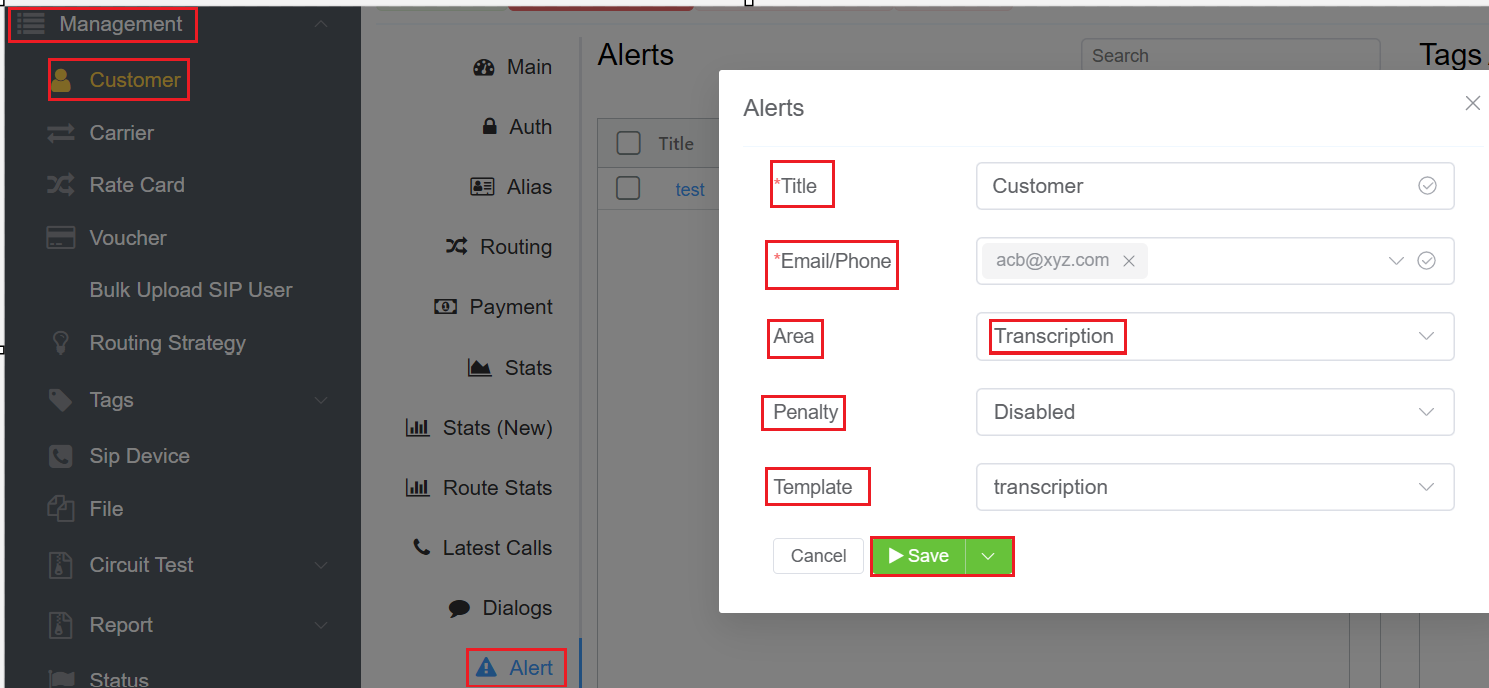
Set Up Transcription Alerts
Add a saved Query Profile as an alert on the customer's account to be notified by e-mail, SMS or call when the phrase is detected.
- Navigate to Management Customer [Customer Name] Alert.
- Enter a Title for the alert.
- Enter the E-mail/Phone Number that should receive the alert.
- Set Area to Transcription.
- Optionally choose a Penalty to disable the customer's account for 1 minute, 5 minutes, 15 minutes, 1 Hour, 1 Day or 1 Year when the alert triggers, or leave it as Disabled.
- Optionally select a Template.
- Click
Save.
Best Practices
- Use targeted keywords: Specific words and phrases give more relevant matches.
- Avoid overly broad terms: Very common words produce too many matches to review.
- Review false positives: Check query results regularly and refine the rules.
- Name profiles clearly: Include the customer and purpose in the profile name, for example
Customer1 – Fraud Phrases. - Test profiles on real calls: Run them in Key Phrase Lookup before attaching an alert or hangup action.
Troubleshooting
| Issue | Likely Cause | Resolution |
|---|---|---|
| No calls listed | Transcription isn't enabled on the account or the customer's route. | Check Setup Settings Account and the customer's Ingress Routing Media Transcribe setting. |
| Some calls missing | Sampling is below 100%, or the calls weren't recorded. | Set Transcribe to Enabled (Always On) and confirm recording is active. |
| Transcript stops mid-call | Transcription Duration limit reached. | Increase or remove the duration limit. |
| New call not showing | The list hasn't reloaded. | Click Refresh. |
| Poor results on non-English calls | English is the default language. | Contact ConnexCS support to request another language. |